
1. Download the latest Arduino IDE (version 0023 or higher) for your operating system from www.arduino.cc/en/Main/Software and install it to suit. You'll also find more step-by-step guides for installation here: www.arduino.cc/en/Guide/HomePage
Windows users please note: The USB driver for the EtherMega must be downloaded and used for first-time installation of the EtherMega's USB port: www.freetronics.com/usbdriver
2. Once the Arduino IDE is installed, we're ready to do the initial board and port setup. You won't need to do this again unless the serial port number changes such as when using a different USB port on your computer.
3. In the Arduino IDE, select Tools > Board > Arduino Mega2560.
4. Before connecting your EtherMega to the USB port, have a look at the list of ports in Tools > Serial Port. That's where your EtherMega serial port is going to appear when you plug it in.
5. Connect your EtherMega to the computer USB port. We supply an appropriate USB cable with the EtherMega. After a short while if you look at Tools > Serial Port again you'll see a new port appear: that's the EtherMega ready to be used. Select that port now with Tools > Serial Port so there is a tick mark next to it
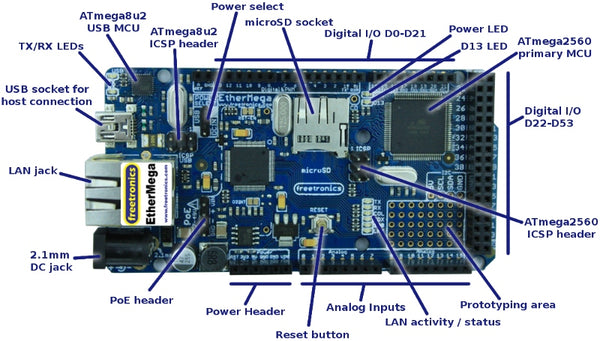
6. You're ready to go. The Arduino IDE now knows about your board and has a connection to it. Our EtherMega boards ship with the "Blink" sketch preloaded so you should immediately see the blue power LED illuminate, and the red D13 LED will begin flashing on and off at 1 second intervals.
Compiling and uploading a sketch to the EtherMega
"Sketch" is the Arduino term for a program. To test uploading a simple sketch to your EtherMega:1. Choose File > Examples > Digital > Blink. You'll see the code for Blink open in the IDE.
2. Select Sketch > Verify/Compile, you've now built (compiled) the program ready to be loaded.
3. Lastly, to load the program into the EtherMega, select File > Upload to I/O Board. You'll see the red D13 LED flicker as the board is reset, then the green and yellow RX and TX LEDs will flash while the upload is in being done.
4. A few seconds later the RX and TX LEDs will go off, the board will reset, and the red D13 LED will begin flashing on and off at 1 second intervals. Congratulations! You've now compiled and uploaded your first sketch to the EtherMega. Try experimenting with changing the delay values in the sketch and repeating the process to see the LED blink at different rates.
Using the LAN port
The network functionality of the EtherMega uses the Wiznet W5100 chip, which is the same chip used on the official Arduino Ethernet Shield. We also kept all the pin assignments the same, so functionally the EtherMega is identical to having, say, an Arduino Mega2560 with an official Ethernet Shield plugged into it.
This means any relevant tutorials or examples you find will work just fine on the EtherMega, and also that it's fully supported by the official "Ethernet" library and associated examples included with the Arduino IDE. If you select File > Examples > Ethernet you will see a variety of sketches that you can try with your EtherMega.
In the Ethernet examples, the hardware MAC address is not programmed from the hardware but instead set inside the sketch. You'll find the MAC address shown near the start of each of the Ethernet examples. You can pick any valid MAC address you like as long as it's unique on your network However, as of V3.0 the EtherMega is special in that it also has a preprogrammed MAC address on a dedicated chip! You can read our guide to how to set a unique MAC address from the chip. This allows you to run the same sketch on several boards, without needing to manually change the MAC address on each one.
There is one small addition you may need to make to EtherMega sketches with Ethernet support, so Ethernet works correctly after a power on. This is because of the onboard reset chip feature of the EtherMega. Read about it here.
Using the microSD card slot
The microSD card slot is supported by a variety of libraries that implement different versions of the FAT filesystem commonly used on microSD cards. The Arduino IDE comes bundled with the "SD" library pre-installed including some example sketches, so look in File > Examples > SD to see how to communicate with a microSD card.
The "select" line for the microSD slot on the EtherMega is D4, the same as used in the examples bundled with the IDE, so the examples should work exactly as-is.
Note that even though both the Ethernet chipset and the microSD card slot use pins D11, D12, and D13, you can still have both features operating at the same time because they can share those pins. You can therefore combine those features to do things like display a list of files on a microSD card in a web page.
Using the Power Source jumper
Because the EtherMega includes an onboard switchmode power supply in place of the regular "linear" regulators used on typical Arduino-compatible boards, it doesn't auto-select the power source. Instead, the power source is set manually using a jumper near the top left of the board.
With the jumper in the "USB" position, power is sourced from the host connected via USB.
With the jumper in the "DC IN" position, power is sourced from the onboard switchmode power supply which is connected to the 2.1mm DC jack on the bottom left of the board.
WARNING: Do not use an external power supply (such as on a shield) that injects 5V directly onto the EtherMega's 5V rail unless you either remove the jumper entirely or put it in the "USB" position. Otherwise the external power supply will attempt to "back-power" the switchmode supply by providing power to its output, and it will be damaged.
EtherMega specifications
| Microcontroller | |
| MCU Type | Atmel ATmega2560 |
| Operating Voltage | 5V |
| MCU Clock Speed | 16 MHz |
| EtherMega | |
| Input Voltage | 7-28V DC (onboard switchmode power supply) |
| Digital I/O pins | 54 (14 provide PWM output) |
| Analog Input Pins | 16 (analog input pins also support digital I/O, giving 70 digital I/O total if required) |
| Analog Resolution | 10 bits, 0-1023 at 5V AREF is approx 0.00488V; 4.88mV per step |
| Current Per I/O Pin | 40 mA maximum |
| Total Current For All I/O Pins | 200mA maximum |
| Current At 3.3V | 50mA maximum |
| Memory | |
| Flash Memory | 256 KB Flash Memory, of which 8 KB is used by bootloader |
| SRAM, EEPROM | 8 KB SRAM, 4 KB EEPROM |
| microSD | microSD card slot with SPI interface. Uses pins D4 (select), D50, D51, D52 |
| Communications | |
| Serial | 4 x hardware USARTs, SPI (Serial Peripheral Interface), I2C |
| Ethernet | 1 x 10/100 LAN port using the Wiznet W5100. Uses pins D10 (select), D50, D51, D52 |
| Other | Integrated USB programming and communication port. Many other one-wire, multi-wire, LCD and expansion devices supported by free code and libraries |


